Big file?
Drop it.
Make PDFs and images smaller,
right from your Dock. No uploads.
No detours.
macOS 14 or later No subscription
On your Mac.
Originals recoverable.
Only smaller files replace.
Your Dock is
the shortcut.
No window to open. No settings to work through. Just drop a file and get back to your day.
01 / Drop a file
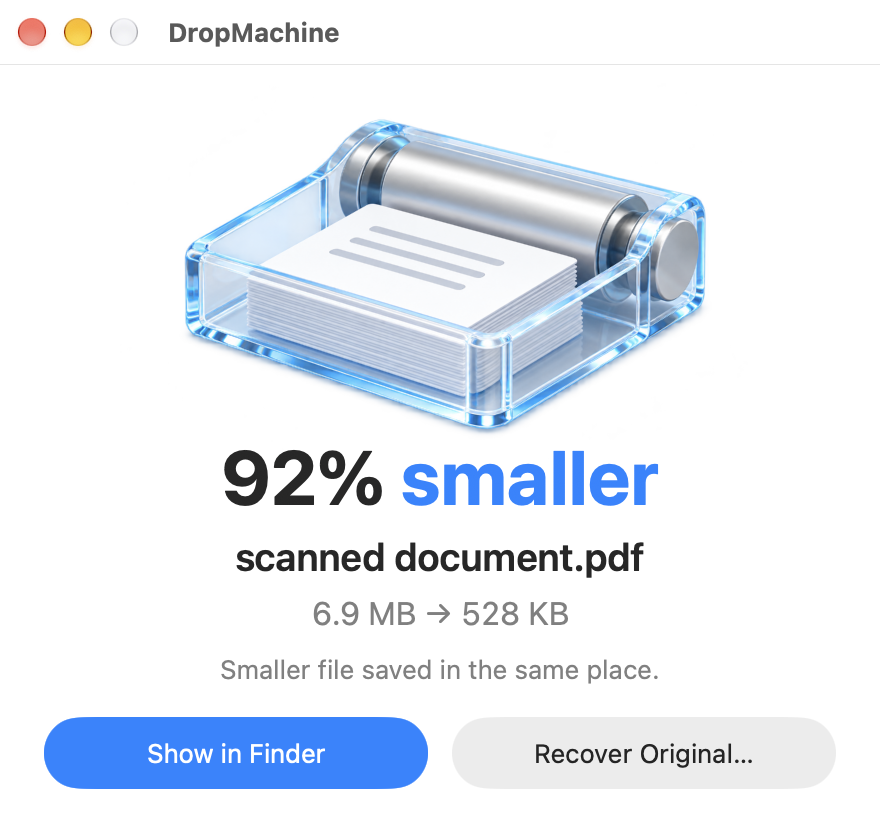
02 / Pick up where you left off
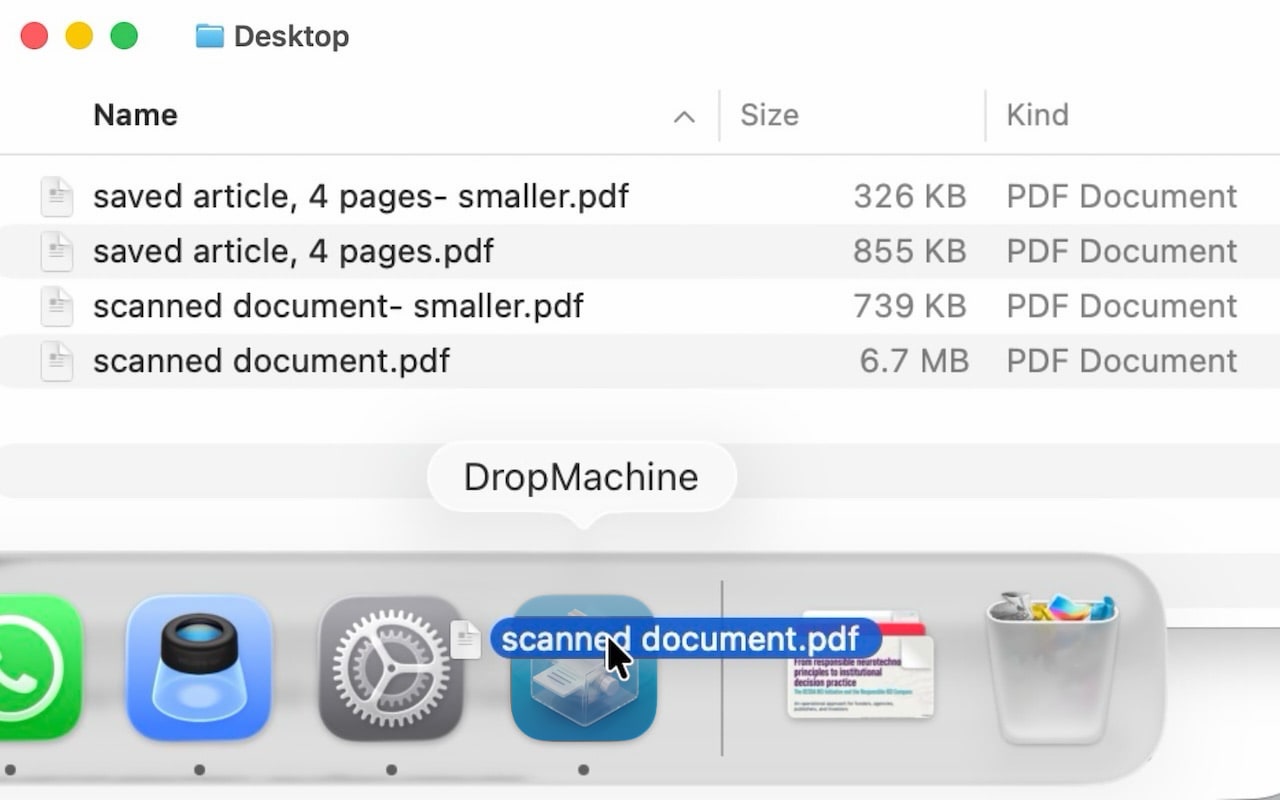
Drop onto the Dock icon.
PDFs, JPGs, PNGs, HEICs and TIFFs.
One file or a whole batch.
Smaller. In the same place.
The reduced file replaces the original only when it is smaller. Recover the original when you need it.
Real app captures, shown as an illustrative sequence. Scanned PDF example; results vary by file.
Use cases
Less file. More possible.
Meet the limit.
Keep your momentum.
Start with the file-size problem in front of you.
Your files.
Still your files.
Private by design.
Reduction happens on your Mac. Your documents never need to visit a server.
How local processing worksA way back.
Originals are kept for one week by default. Change retention in Settings, or recover a separate copy.
About recovering originalsA little lighter, every second
Small savings
add up.
estimated MB saved since 2016
A model, not a live measurement.
No file data collected. See the model.
Model: +12.4 MB every second
A few good
questions.
Will every file get smaller?
No. Scanned and image-heavy PDFs often have the most room to shrink. Already optimized files may not get smaller. DropMachine replaces a file only when the result is smaller; otherwise it leaves the original in place.
What happens to image quality?
Smaller files can mean less image detail. Image dimensions default to 50%; choose 25%, 50%, 75% or 100% in Settings. PDF processing can also reduce embedded-image quality. Check the result before sharing, and recover the original if you need it.
Can I recover the original?
Yes, while its backup is retained. Choose Recover Original to save a separate copy without overwriting the reduced file. Originals are kept for one week by default; you can change that in Settings.
Does it work offline?
Yes. PDF and image reduction happens locally on your Mac, without uploading your files. You only need an internet connection to download the app or its updates from the App Store.