See the path.
Open Heliochron to the AR view. With camera and location access, the calculated sun path sits over your surroundings.
 Heliochron
App Store
Heliochron
App Store
Light. Time. Place.
See where the sun will be,
right where you stand.
A pocket instrument for curious eyes. Open the camera, see the sun’s path, and explore a place through the day and year.
Download on the App StoreFor iPhone · Available now
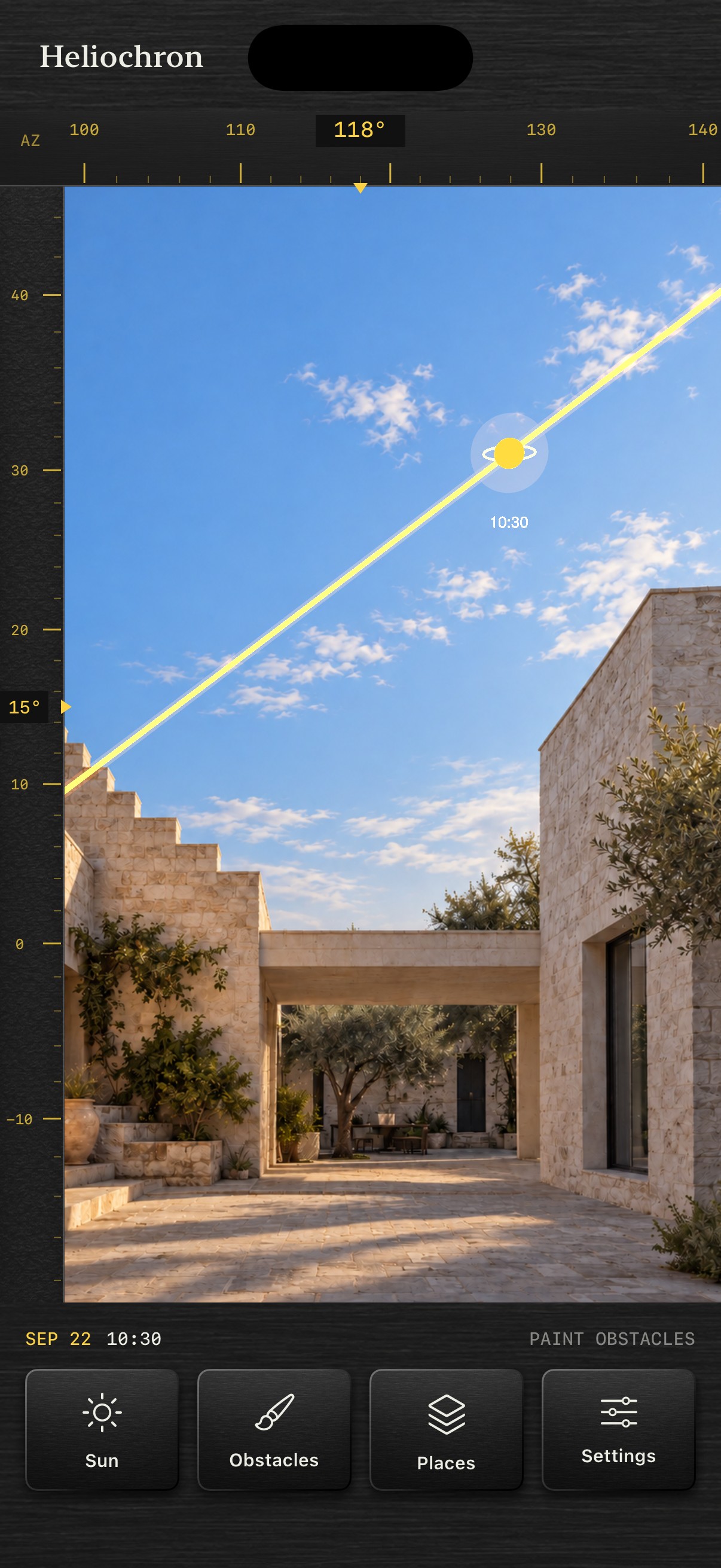
The place comes first
Open Heliochron to the AR view. With camera and location access, the calculated sun path sits over your surroundings.
Turn a wheel to explore the time of day. Turn the other to travel through the year. Keep the place in view.
Paint the buildings, trees, or hills that block the sky. Fine hatching keeps your marks visible without hiding the view.
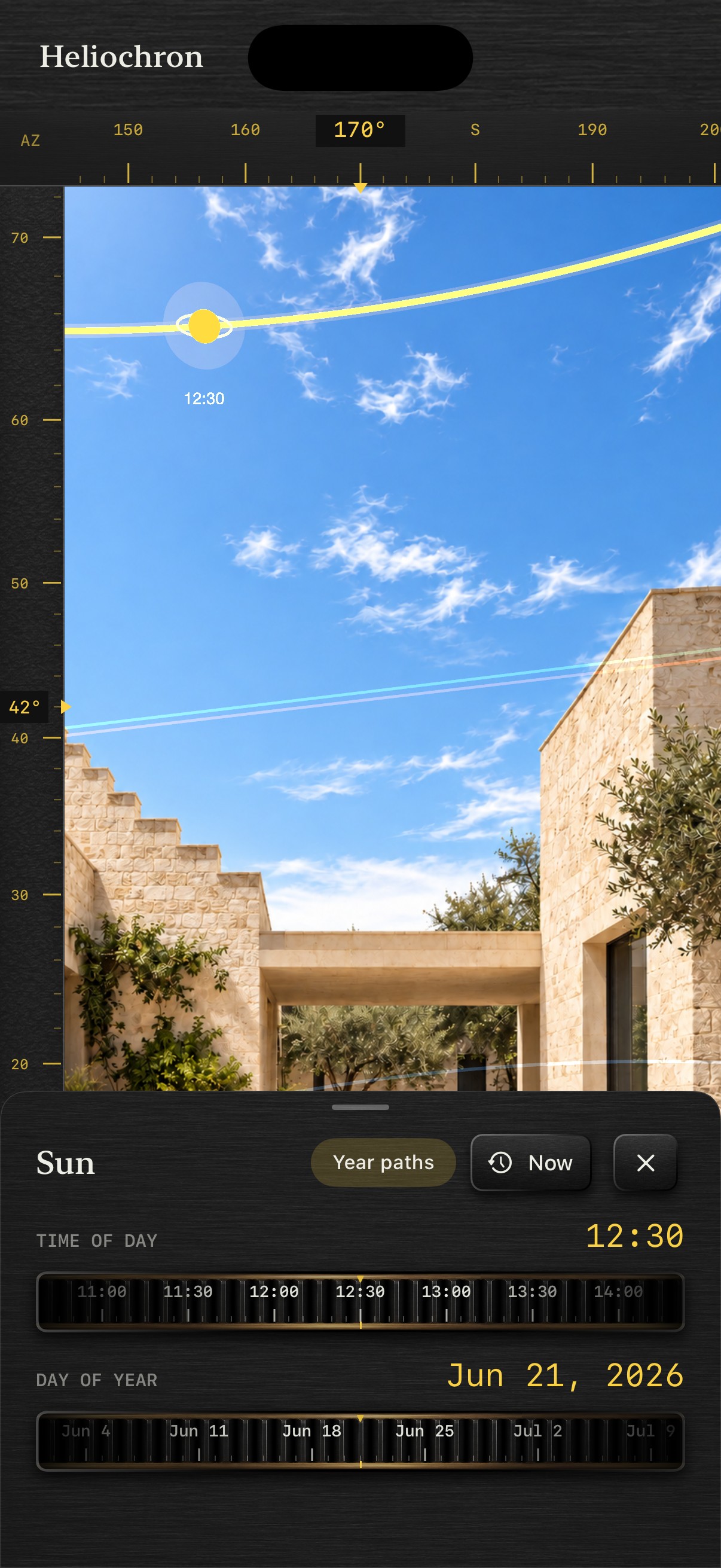
Time at your fingertips
Two slim thumbwheels. Quiet yellow markings. Azimuth and elevation along the edges. An instrument that leaves room for the world outside.
Move from this afternoon to a winter morning, then return to now with a tap.
For the way you look at places
On an architectural walk
Follow a roofline, notice an opening, explore the winter sun. For architects and urban planners off duty—and anyone who enjoys looking a little closer.
In your garden or balcony
Look from a possible planting position. Explore the sun’s route and mark a nearby wall or tree. One more way to understand your growing space.
Or find a reason to return to a street, a terrace, or a favorite view when the sun is somewhere else.
A considered instrument
Heliochron shows a calculated sun position, not a weather forecast or a simulation of shadows falling across buildings. Alignment depends on your iPhone’s location, heading, and camera tracking.
Obstacle marks are yours to draw. They describe the sky from one viewpoint and need checking when you move or return.
Your saved places stay on your iPhone. No account, advertising, or tracking SDKs. Read about privacy
Good to know
No. The app opens to the AR experience. After granting the needed permissions, you can explore the path immediately. Painting obstacles is an optional next step.
Avoid keeping your iPhone’s camera pointed directly at the sun for prolonged periods: this may damage the camera. Turn the lens away from the sun. Heliochron’s warning and camera pause are reminders, not physical protection—pausing the camera cannot block incoming sunlight.
The Sun button opens separate controls for the time of day and the date. Change either to explore the sun’s position, or use Now to return to the present.
No. You mark obstacles with your finger. You can paint, erase, and undo. These marks are viewpoint-specific, not a depth scan or an automatically generated 3D model.
No. It helps you explore the sun’s direction and the obstacles you mark. It does not measure light intensity, assess plant health, or provide planting recommendations.
Heliochron is a personal instrument for observation and exploration. It is not a certified survey, building-compliance, PV design, or professional solar-assessment tool.
Use the app outdoors, give tracking time to settle, and move away from magnetic interference such as cars or metal railings. Check Settings and verify the view before relying on it. More alignment guidance
Heliochron for iPhone